Temporary S3 Access Using Pre-Signed URLs
If you've ever needed to share a file stored in Amazon S3 without giving someone permanent access to your bucket, pre-signed URLs might be the way to go. In this post, I will explore what they are and give a quick example of how to use them.
Since April 2023, AWS have enabled"Block Public Access" as the automatic default for all newly created S3 buckets, meaning that buckets and the objects within them are private, and any attempt to make them publicly accessible must be explicitly configured. This however doesn't automatically protect older "legacy" buckets created pre April 2023 from potentially exposing sensitive data. That's a whole different blog post.
What are Pre-Signed URLs?
A pre-signed URL is a temporary URL that grants time-limited access to a private S3 object. Instead of sharing your AWS credentials, you can generate a special URL that anyone can use to access a specific file, but only for a set period of time. They allow you to keep your data private while controlling exactly how long an object can be accessed, with expiration times ranging from seconds to hours. They also avoid the need to create or manage additional AWS credentials or IAM users for people who simply need temporary access. On top of that, pre-signed URLs can be generated programmatically, making them particularly useful when access needs to be based on application logic or user actions.
TLDR: You don't actually need to make the object public. You can leave S3 private and access the file using a pre-signed URL, which gives temporary access without making the bucket publicly readable.
resource "aws_s3_bucket" "terraform_test" {
  bucket = "chris-terraform-test20260821"
}

resource "aws_s3_object" "hello" {
  bucket = aws_s3_bucket.terraform_test.id
  key    = "hello.txt"
  source = "hello.txt"
}
main.tf
This isn't a full blown Terraform walkthrough, however lets break down the contents of main.tf into two parts:
First we use a resource type, this comes from the AWS Terraform provider and its used to tell Terraform what kind of AWS resource we wish to create, aws_s3_bucketand then the local name that we wish to give to the resource inside of Terraform, terraform_testin our example. We then specify the actual name of the S3 bucket we want to use in AWS, this needs to be distinctive, aws_chris-terraform-test20260821'.
resource "aws_s3_bucket" "terraform_test" {
  bucket = "chris-terraform-test20260821"
}
Breakdown - Part 1 - Creating the Resource
Next we actually put the file into the bucket that we are creating, essentially telling AWS that we want to manage an object file in s3, resource "aws_s3_object" giving it a local name of hello. Line two is the most interesting line, it basically says "put this object into the bucket represented by aws_s3_bucket.terraform_test and .id asks Terraform for that resources id.
This means that aws_s3_bucket.terraform_test.id will resolve to the ID of the S3 bucket that we named, chris-terraform-test20260821. Next we have key = "hello.txt", this is instructing AWS to call the file hello.txt once it has been loaded into S3. Finally we have source = "hello.txt" which is telling Terraform where to find the local file that we are uploading, given that Terraform looks in the currently directory, we would need have the hello.txt file within our current working directory.
resource "aws_s3_object" "hello" {
  bucket = aws_s3_bucket.terraform_test.id
  key    = "hello.txt"
  source = "hello.txt"
}
Breakdown - Part 2 - Putting and naming the file into the bucket
Once we have everything in place, it's a case of using terraform plan followed by terraform apply to create the bucket and add the object file. (AWS cli was setup previously). Once Terraform has done its magic we can attempt to view our recently created "hello.txt" file via the browser, however we get the following error:
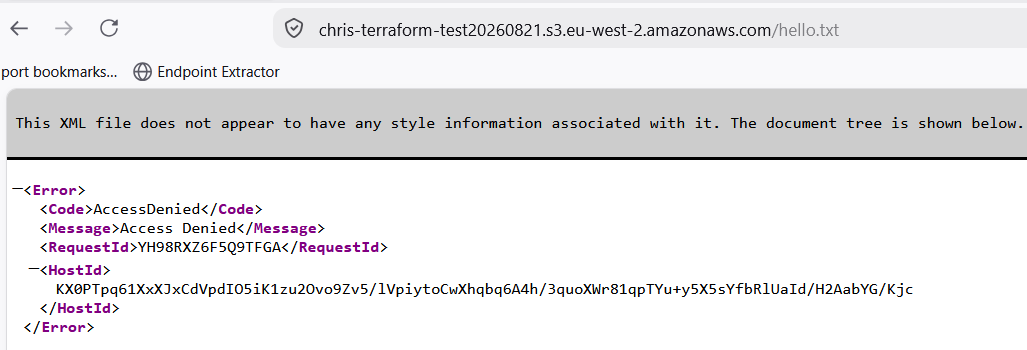
This is normal, we expect the access to be denied due to AWS having enabled"Block Public Access". Instead of changing permissions or creating new access rules, lets create a Pre-Signed URL thats only available for a fixed amount of time. To do this, I issued the following command inside my visual code terminal:
aws s3 presign s3://chris-terraform-test20260821/hello.txt --expires-in 3600 --profile terraformCreating the pre-signed url for the hello.txt object
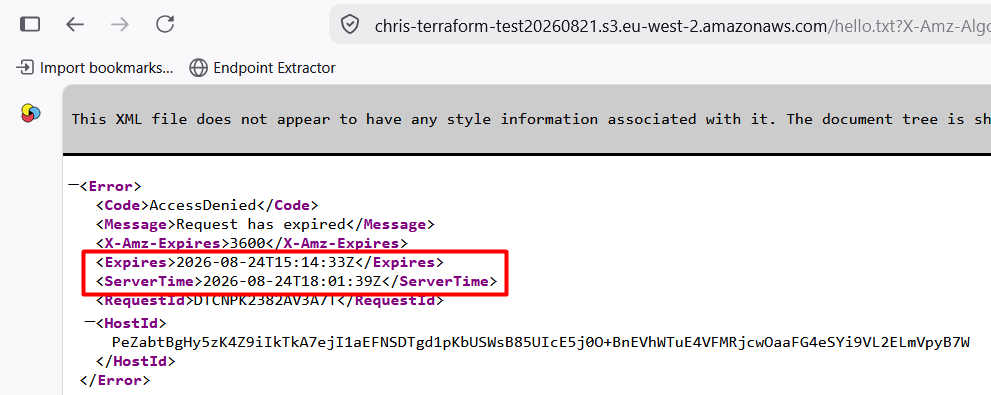
This then gives us a unique URL for this object that is valid for 3600 seconds, or 1 hr.
https://chris-terraform-test20260821.s3.eu-west-2.amazonaws.com/hello.txt?X-Amz-Algorithm=AWS4-HMAC-SHA256&X-Amz-Credential=AKIAZAN4NYWA7A7Y4WCY%2F20260824%2Feu-west-2%2Fs3%2Faws4_request&X-Amz-Date=20260824T141433Z&X-Amz-Expires=3600&X-Amz-SignedHeaders=host&X-Amz-Signature=d41f3a7a986337d54f7ab2ab76c3a26aebe8f769414803aa45461ed1fce25890Visiting the URL will then allow us to download the file, however if we go outwith the 1 hr validity period, access to the hello.txt object within the s3 bucket will be prevented, as shown below:
One final security point
We used an IAM user's long-lived access key (terraform) to create this URL. In a real application we would want to avoid giving an application a permanent IAM access key where possible. Ideally the application would assume an IAM role and use temporary credentials to generate the pre-signed URL.